Use Player Display
Show players a fog-of-war view on a second screen.
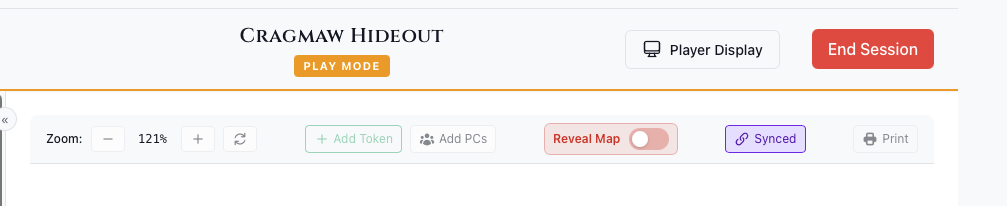
Opening the Display
- Click Play on a module to open the DM Map window
- Click Display in the window’s top toolbar (it changes to Display On)
- A new window opens
- Drag the window to your player-facing screen
What Players See
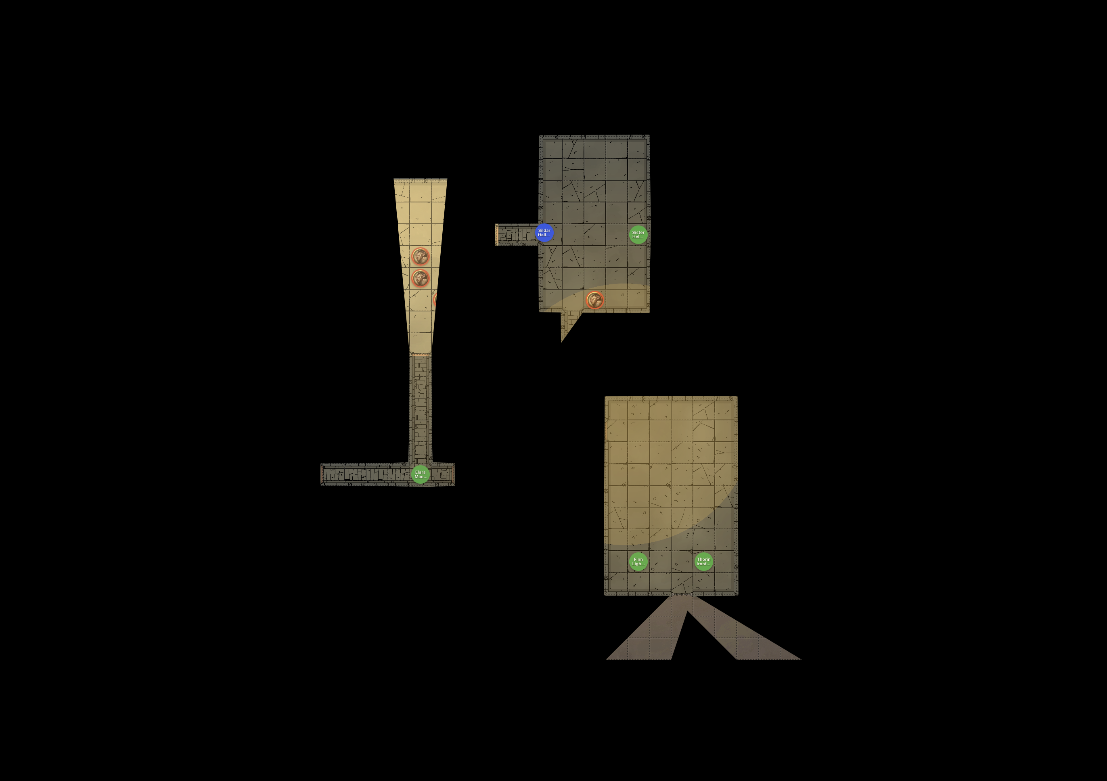
The player display shows:
- Current map with fog of war
- Visible tokens only
- No monster names or stats
- Clean interface without controls
Blackout Mode
Hide everything from players:
- Click the Blackout button (crossed-out-eye icon, tooltip “Toggle Blackout”) next to Display On — it appears while the display is open
- Player screen blacks out and shows “Display Paused”
- Click again to restore
Use for:
- Setup before session
- Dramatic reveals
- Map transitions
- Bathroom breaks
Switching Maps
- Pick a different map from the Map dropdown at the top left of the DM Map window
- Player display updates automatically
- Use Blackout during transitions for drama
Closing the Display
- Click the Display On button again, or
- Close the window directly
Tips
- Use fullscreen (F11) on the player screen
- Keep notes on your screen, map on theirs
- Use Blackout liberally for reveals