Module Prep View
The Module Prep View is where you prepare adventure content before running it in Play Mode.
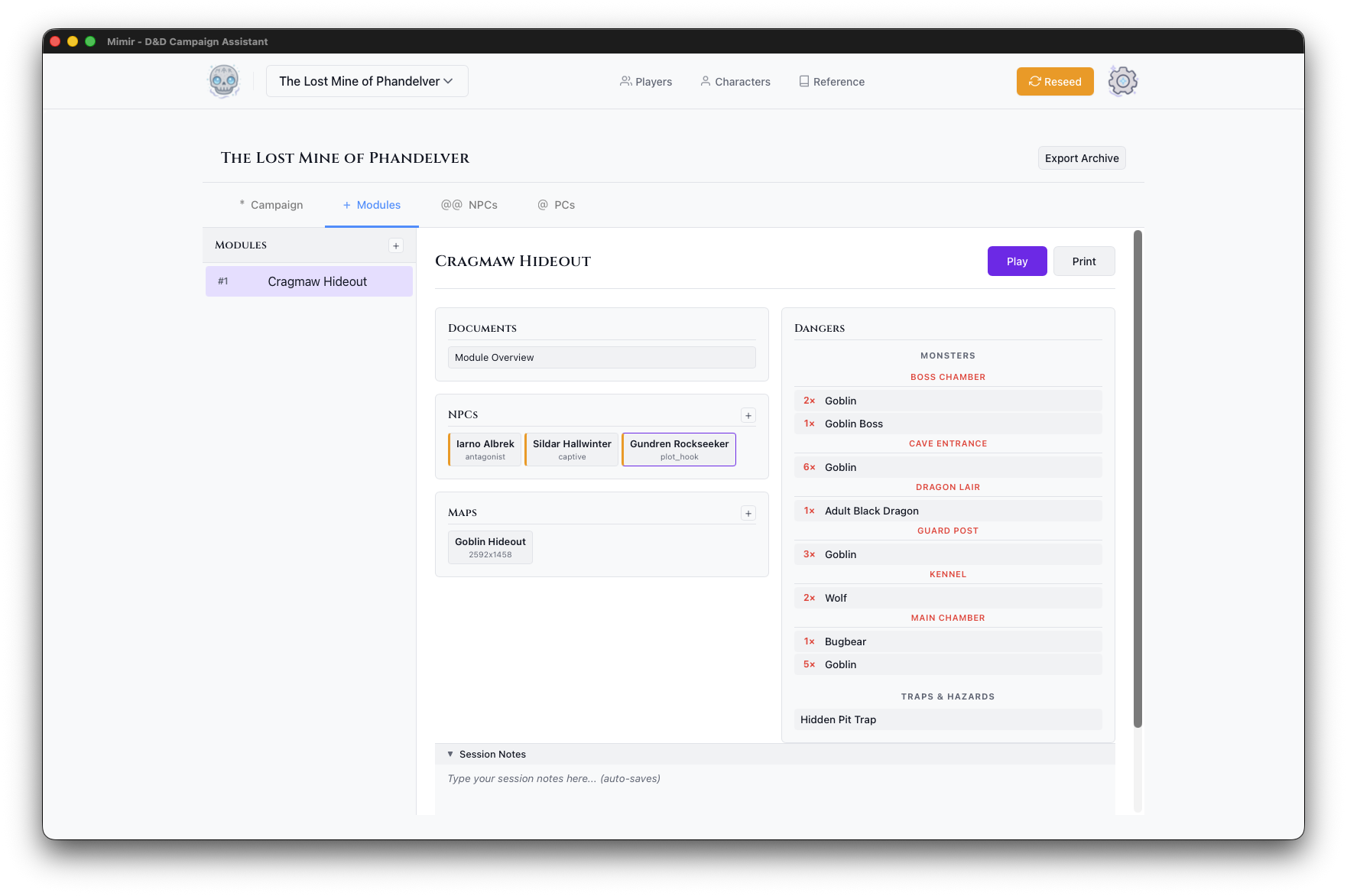
Layout
Sidebar (Left)
The module list showing all modules in the campaign:
- Module Cards - Name and number
- Create Module - Add new module (+)
- Active Indicator - Shows which module is selected
Main Panel (Right)
The selected module’s dashboard with sections:
Module Header
- Module Name - Title of the adventure
- Play - Enter Play Mode for this module
- PDF - Export module materials as PDF
Content Sections
Documents
Session prep documents and notes:
- Organized by type (encounter notes, descriptions, etc.)
- Create new documents with the + button
- Click to edit
NPCs
Non-player characters specific to this module:
- Quick reference for module NPCs
- Link to full NPC details
- Add NPCs with the + button
Maps
Battle maps and area maps:
- Map cards with thumbnails
- Click the Place Tokens button to open Token Setup
- Upload new maps with the + button
Monsters
Quick view of monsters in this module (populated from Token Setup). Includes both catalog and homebrew monsters.
Actions
| Action | How To |
|---|---|
| Create module | Click + next to “Modules” header |
| Select module | Click module in sidebar |
| Enter Play Mode | Click “Play” button |
| Upload map | Maps section → + button |
| Open Token Setup | Click Place Tokens button on a map card |
| Add document | Documents section → + button |