Play Mode
Play Mode is how you run a game session in Mimir. Clicking the Play button on a module (campaign dashboard Modules tab, or the modules table on the campaign landing page) opens the DM Map window — a separate window with the tactical battle map — while the main window stays on the campaign dashboard for monster stats, documents, and notes.
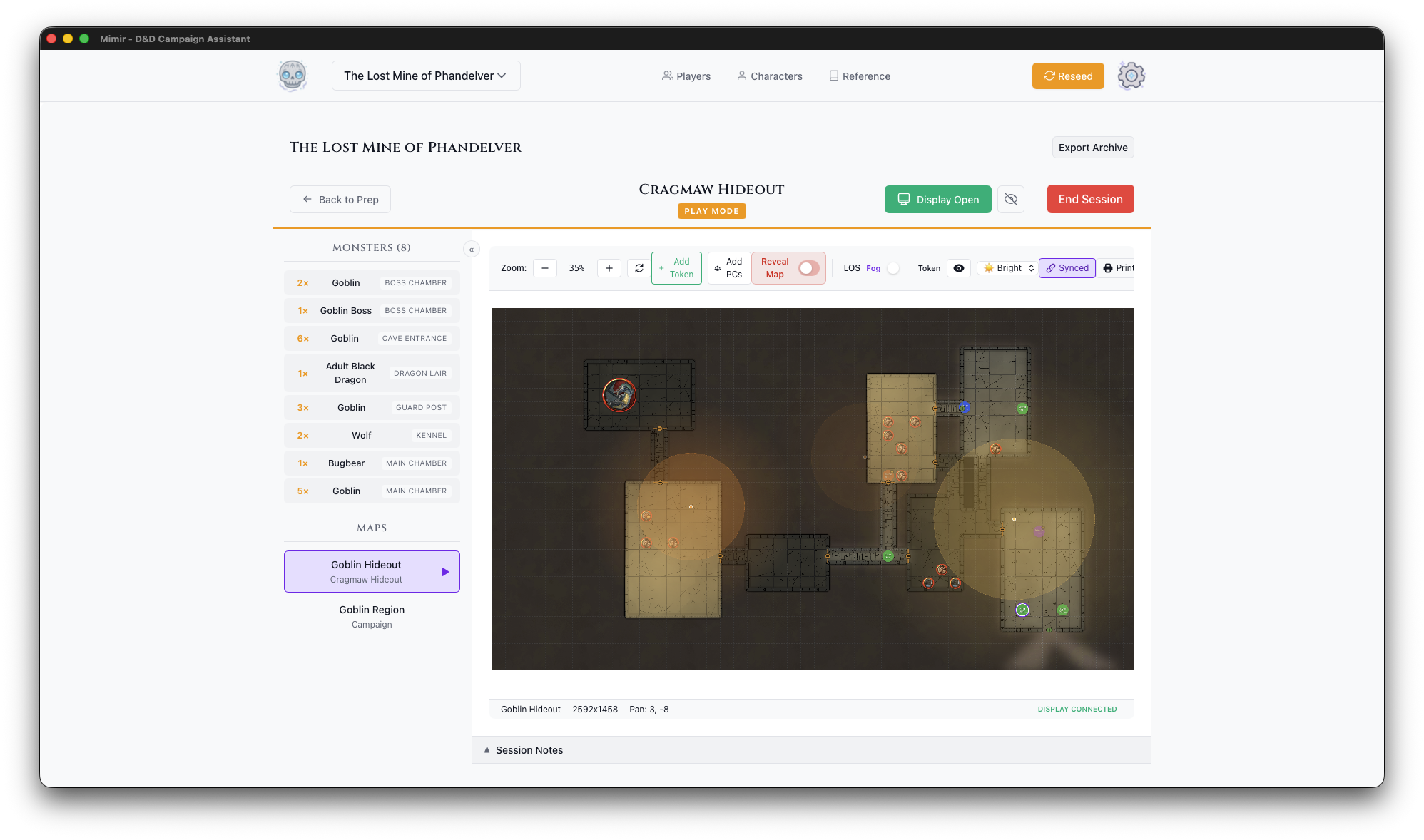
Session Surfaces
| Surface | Role |
|---|---|
| DM Map window | Map selection, tokens, fog of war, Player Display controls |
| Player Display | Player-facing window with fog applied |
| Campaign Dashboard (main window) | Monster stat panel, module documents (including Play Notes), NPCs |
Double-clicking a token, trap, or POI in the DM Map window focuses the corresponding entry in the campaign dashboard.
The sections below document the map viewer — the canvas and toolbar embedded in the DM Map window.
Map Canvas
The tactical display:
- Current map with grid
- All tokens (visible and hidden)
- Fog of war visualization (semi-transparent on the DM view)
- Light source effects
Map Toolbar
Above the map canvas:
| Control | Function | Availability |
|---|---|---|
| Zoom | +/- buttons, percentage display | Always |
| Reset | Fit map to view | Always |
| Add PCs | Place all campaign PCs on the map | Always |
| Reveal Map | Eye toggle: show the entire map to players, overriding Fog and LOS | Always |
| Fog | Toggle: hide the map outside party vision; turning it on forces LOS on | UVTT maps; disabled while Reveal Map is active |
| LOS | Toggle: hide tokens outside party line of sight | UVTT maps; disabled while Reveal Map or Fog is active (locked on under Fog) |
| Ambient Light | Dropdown: Bright, Dim, or Dark | UVTT maps |
| Debug | Toggle debug overlays (vision ranges, walls) on the DM view | UVTT maps |
| Export map to PDF | Always |
Visibility Controls
Fog and LOS are two separate toggle buttons, but they are not fully independent: enabling Fog forces LOS on and locks the LOS button until Fog is turned off. LOS can be enabled on its own. Reveal Map overrides both while active without changing their settings. Both toggles start off when the window opens.
| State | Map (player view) | Tokens (player view) |
|---|---|---|
| Fog off, LOS off | Fully visible | All player-visible tokens shown |
| LOS only | Fully visible | Only tokens within party line of sight |
| Fog on (LOS forced on) | Hidden outside party vision | Only tokens within party line of sight |
| Reveal Map | Fully visible | All player-visible tokens shown |
Individually hidden tokens are never shown to players, in any state.
Vision ranges and lighting values are listed in Vision & Lighting; common workflows are in Fog of War; the rationale is in Vision System.
Working with Tokens
- Move - Click and drag
- Select - Click token
- Toggle visibility - Right-click → Hide from Players / Show to Players (or select and press H)
- Mark dead - Right-click → Mark Dead (or select and press D)
- View stats - Double-click a monster token to focus it in the campaign dashboard’s monster panel
Player Display Controls
In the DM Map window’s top toolbar:
- Display - Open/close the Player Display window (shows Display On while open)
- Blackout - Hide everything from players (shown only while the display is open)
Session Notes
There is no notes panel in the DM Map window. Each module has an auto-created Play Notes document — open it from the Documents panel on the module dashboard in the main window. It auto-saves as you type.