Player Display
The Player Display is a separate window showing what players can see, designed for a second screen, TV, or projector.
Opening the Display
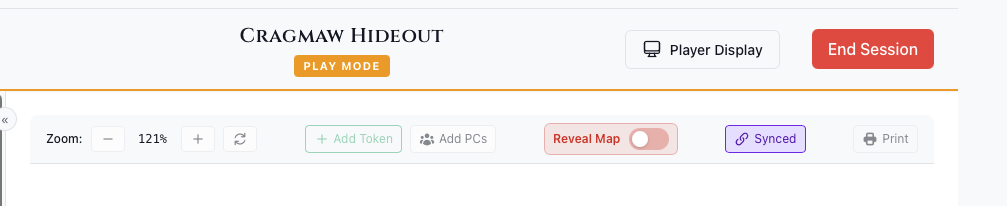
In Play Mode, click the Player Display button in the header. A new window opens that you can drag to your player-facing screen.
What Players See
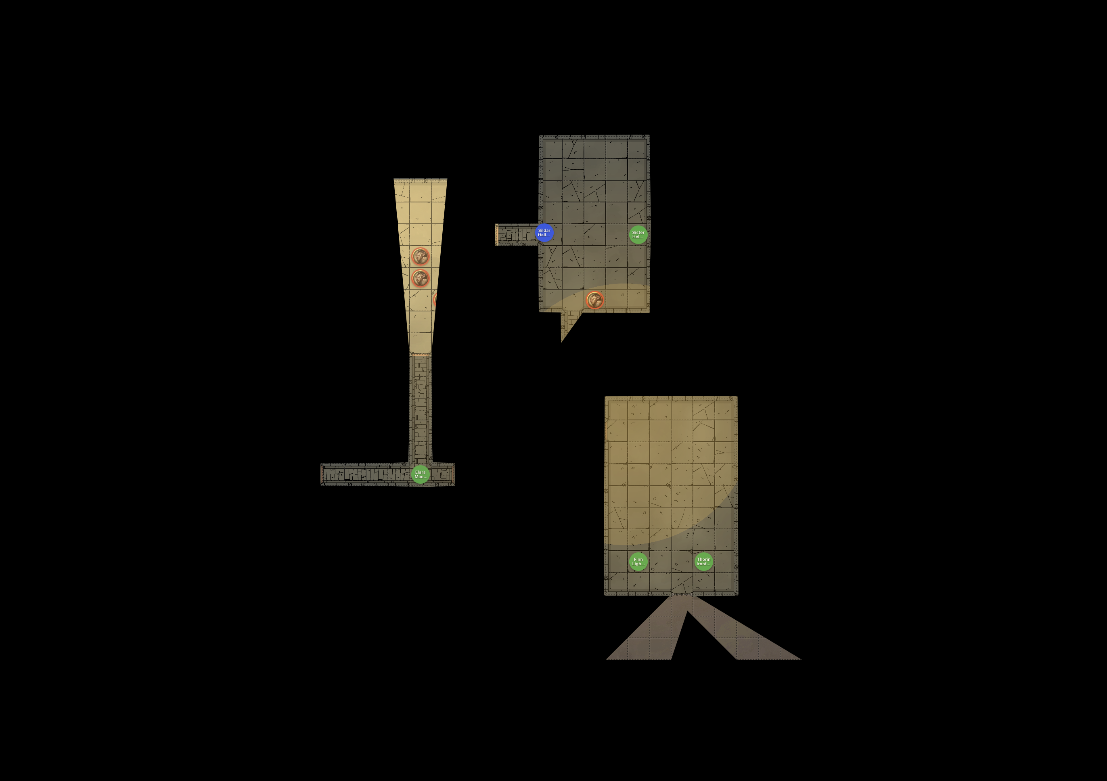
The player display shows:
- Map - Current active map
- Fog of War - Based on PC positions and vision
- Visible Tokens - Only tokens marked as visible
- Light Effects - From active light sources
What’s Hidden
Players do NOT see:
- Hidden tokens
- Monster names or stats
- DM controls or UI
- Session notes
- Debug visualizations
Fog of War Controls
Two independent toggles control what players see:
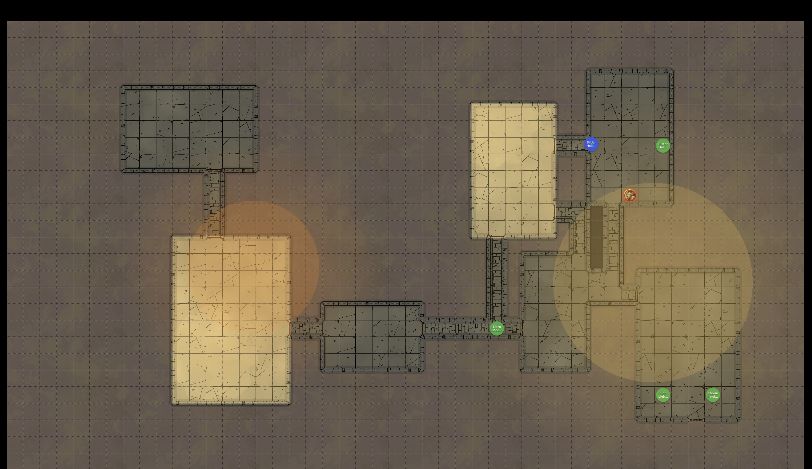
Fog
- Unrevealed areas are black
- Reveals based on PC vision
- Best for exploration
LOS
- Map remains fully visible
- Enemy tokens hidden outside PC vision
- Best for tactical combat
DM Controls
When the Player Display is open, additional controls appear:
| Control | Function |
|---|---|
| Blackout | Show black screen to players |
| Reveal Map | Bypass fog of war entirely |
| Ambient Light | Affects fog of war calculation |
Blackout Mode
Click the eye icon (Blackout) to:
- Hide everything from players
- Show a completely black screen
- Set up encounters secretly
- Create dramatic reveals
Click again to restore the view.
Physical Setup
TV/Monitor
- Connect via HDMI/DisplayPort
- Set display to “Extend” (not mirror)
- Drag Player Display window to second screen
- Maximize or fullscreen (F11)
Projector
- Project onto table or wall
- Useful for tabletop projection mapping
Virtual/Remote
- Share the Player Display window via screen share
- Works with Discord, Zoom, etc.
Troubleshooting
| Issue | Solution |
|---|---|
| Window on wrong screen | Drag to correct display, then maximize |
| Players see hidden tokens | Check token visibility settings |
| Fog not updating | Verify PCs are marked visible |
| No window opens | Check popup blocker settings |