Home Screen
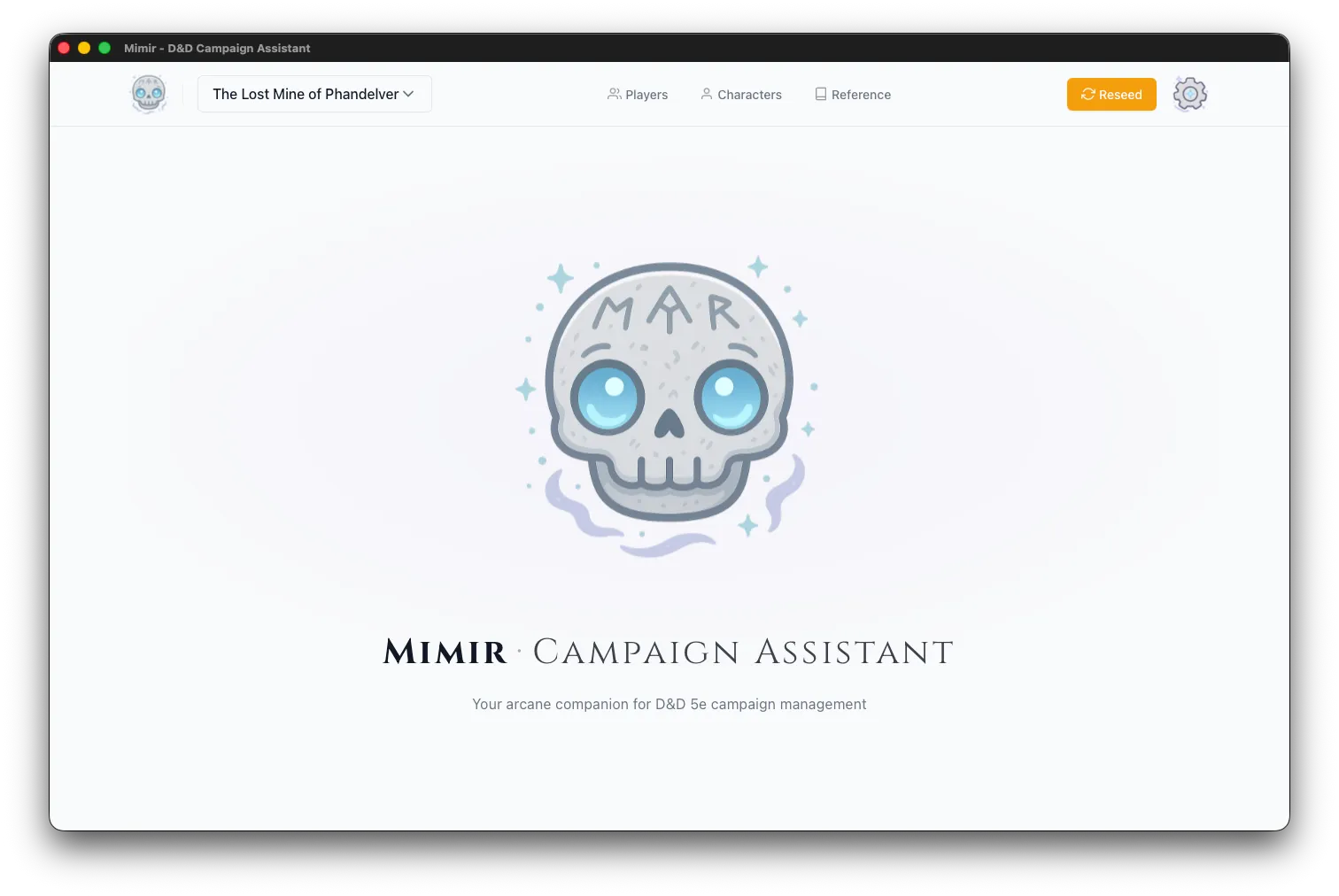
The Home Screen is your starting point in Mimir. From here you can access campaigns, characters, reference materials, and application settings.
Layout
Section titled “Layout”Header Bar
Section titled “Header Bar”The header bar is consistent across the entire application — it appears on every screen:
| Element | Position | Function |
|---|---|---|
| Mimir Logo (skull icon) | Left | Returns to the home screen from anywhere |
| Campaign Selector | Left-center | Dropdown to switch campaigns or create new ones |
| Characters | Center | Opens the character list (all campaigns) |
| Reference | Center | Opens the D&D 5e reference browser in a new window |
| Settings (gear icon) | Right | Application preferences and catalog management |
Campaign Selector
Section titled “Campaign Selector”The campaign selector dropdown shows:
- All active (non-archived) campaigns
- + New Campaign button at the bottom
- Import Campaign option for loading archives
Selecting a campaign navigates to its Campaign Dashboard.
Main Content
Section titled “Main Content”The home screen displays the Mimir landing with the floating skull and tagline. The skull artwork adapts to the active theme (light, dark, or hyper).
Actions
Section titled “Actions”| Action | Location |
|---|---|
| Open a campaign | Campaign Selector dropdown |
| Create a campaign | Campaign Selector → + New Campaign |
| Import a campaign | Campaign Selector → Import Campaign |
| Access characters | “Characters” link in header |
| Open reference browser | “Reference” link in header (opens new window) |
| Open settings | Gear icon in header |
| Return home | Mimir skull icon |
Settings Screen
Section titled “Settings Screen”Accessible via the gear icon. The Settings screen provides:
- Catalog Management — Import source data archives, enable/disable source books
- Theme Selection — Light, Dark, or Hyper theme
- Application Info — Version number, data paths, dev mode status